

🔐 Rundoo Primer: Shared Sign-in with PIN
Your busiest register just got faster.

Summary
You can now set up a shared login on any register so clerks switch between transactions with a quick PIN instead of waiting for a verification code every time. Sales still get tracked to each person by name.
What is new with Rundoo?
1. Shared Sign-in with PIN
If you have a front counter where two or three clerks rotate throughout the day, you know the drill. Someone finishes a sale, the next person steps up, and now everyone is standing around waiting for a text message with a verification code. The customer is waiting. The line is growing.
Shared Sign-in with PIN fixes that.
Here is how it works. You create a dedicated staff account for the register itself, something like “Register 1” or “Front Counter.” That account gets signed in once at the start of the day using a verification code via text, email, or Yubikey. After that, each clerk just types in their own short PIN (2 to 6 digits) to take over. No more texting. No more waiting.
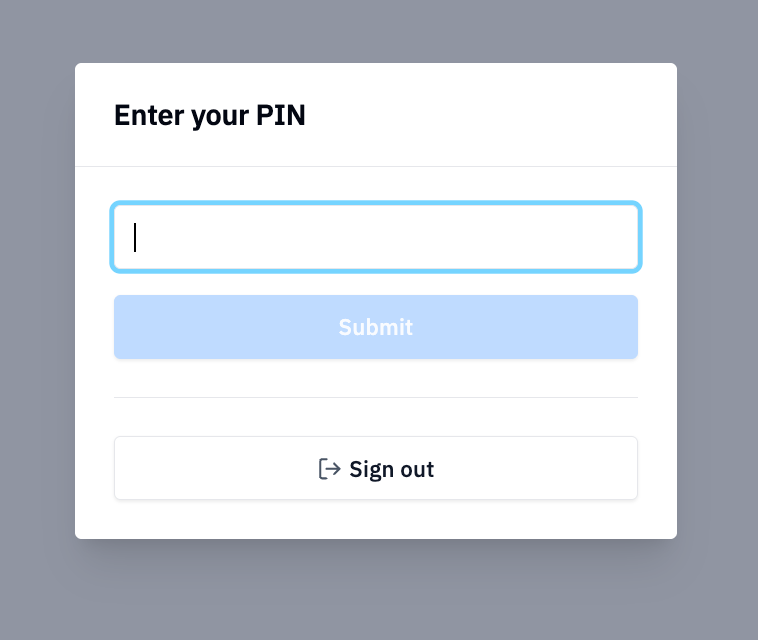
What does this mean?
Every sale still gets tied to the clerk who rang it up. Your sales reports, commission tracking, and accountability all stay the same. The only thing that changes is how fast your team can switch.
One important thing to understand: the PIN does not carry any permissions. It only identifies who made the sale. All permissions come from the shared account that is signed in on that register. So if you don’t want your counter clerks issuing refunds or editing prices, set those restrictions on the shared account and they apply to everyone who enters a PIN. This makes getting your shared account permissions right even more important. We recommend creating a dedicated account for each register rather than sharing a personal or admin login.
Why is this important?
This was one of the most requested features on our idea board. Stores with busy paint counters, front registers, or service desks told us the verification step was slowing them down during peak hours. A Benjamin Moore dealer mixing paint all morning shouldn’t have to wait for a text code when a coworker steps in to ring up a gallon of Regal Select. A farm and feed store with clerks rotating between the register and the floor shouldn’t lose a minute every time someone switches.
PINs keep things moving without giving up the tracking you need.
Here’s a link to the video of the whole process.
What does it look like?
Setting it up takes just a few minutes:
Create a shared staff account in Admin > Staff. Name it after the register or workstation (e.g., “Register 1”). Set the permissions you want for that counter.
Enable shared sign-in on that account under the General tab.
Assign a PIN to each clerk who will use that register, on their own staff profile.
(Optional) Turn on “Automatically sign out after completing sale” in Admin > Security if you want the register to return to the PIN prompt after every transaction.
That’s it. Sign in once in the morning with a code or Yubikey. PIN in and out all day.
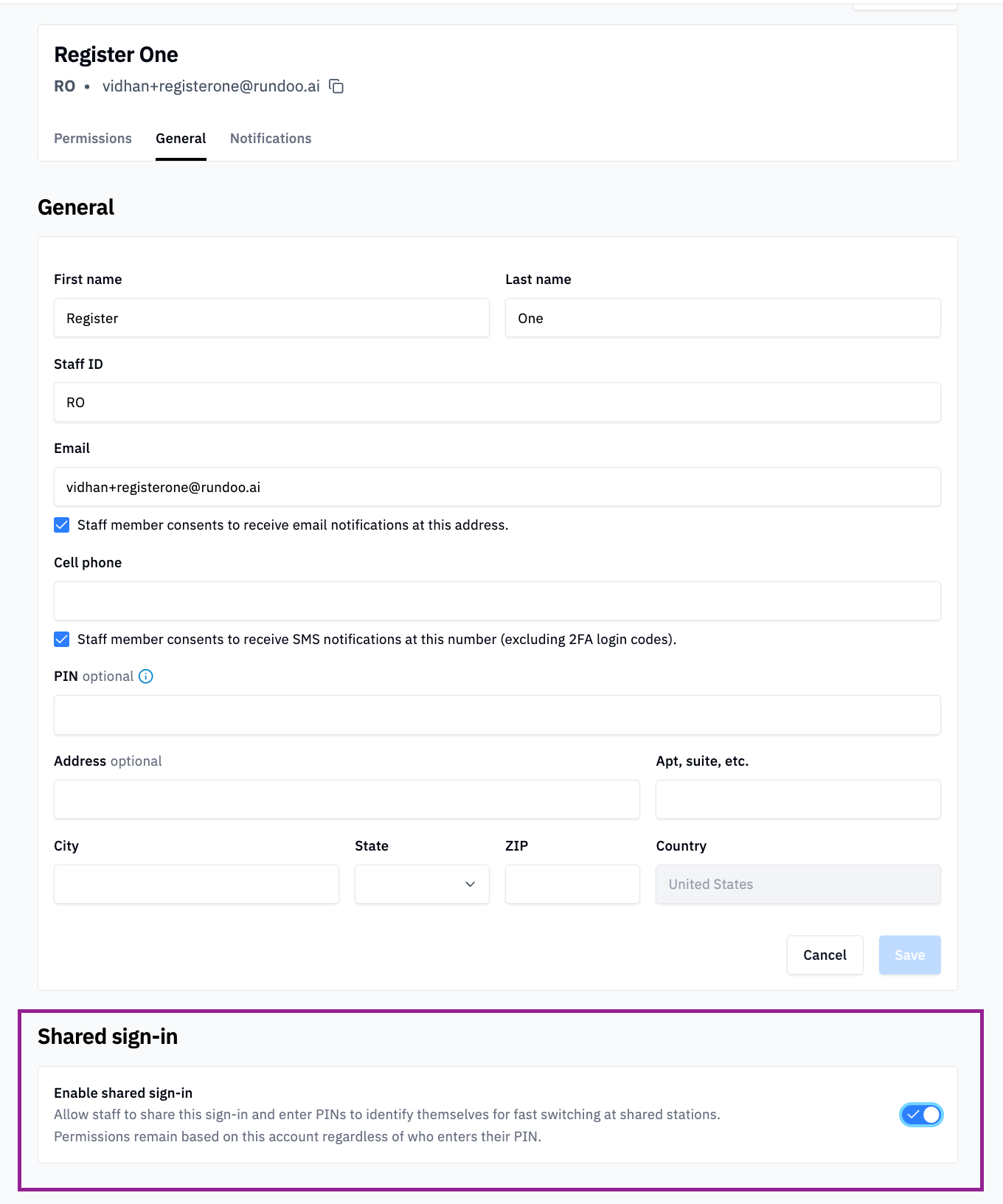
For the full setup walkthrough, visit Shared Sign-in with PIN on rundocs.com.
Also New 🗂️
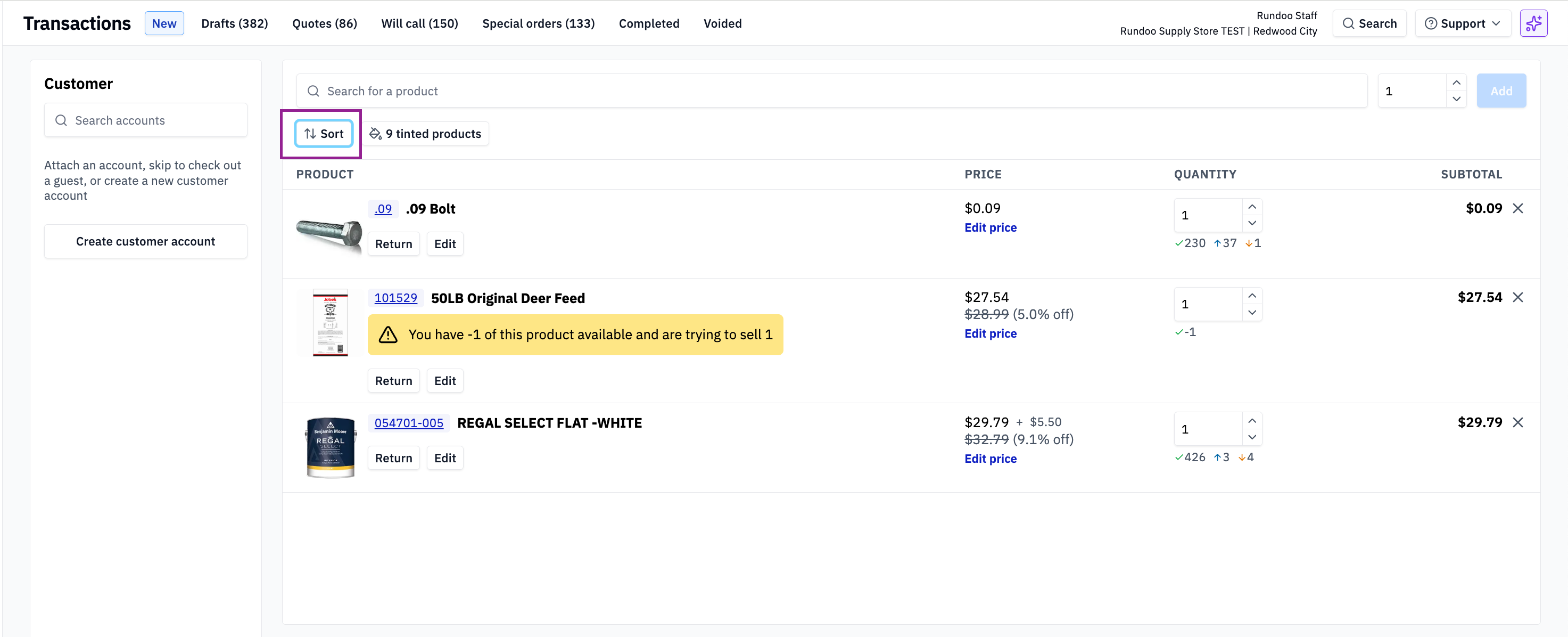
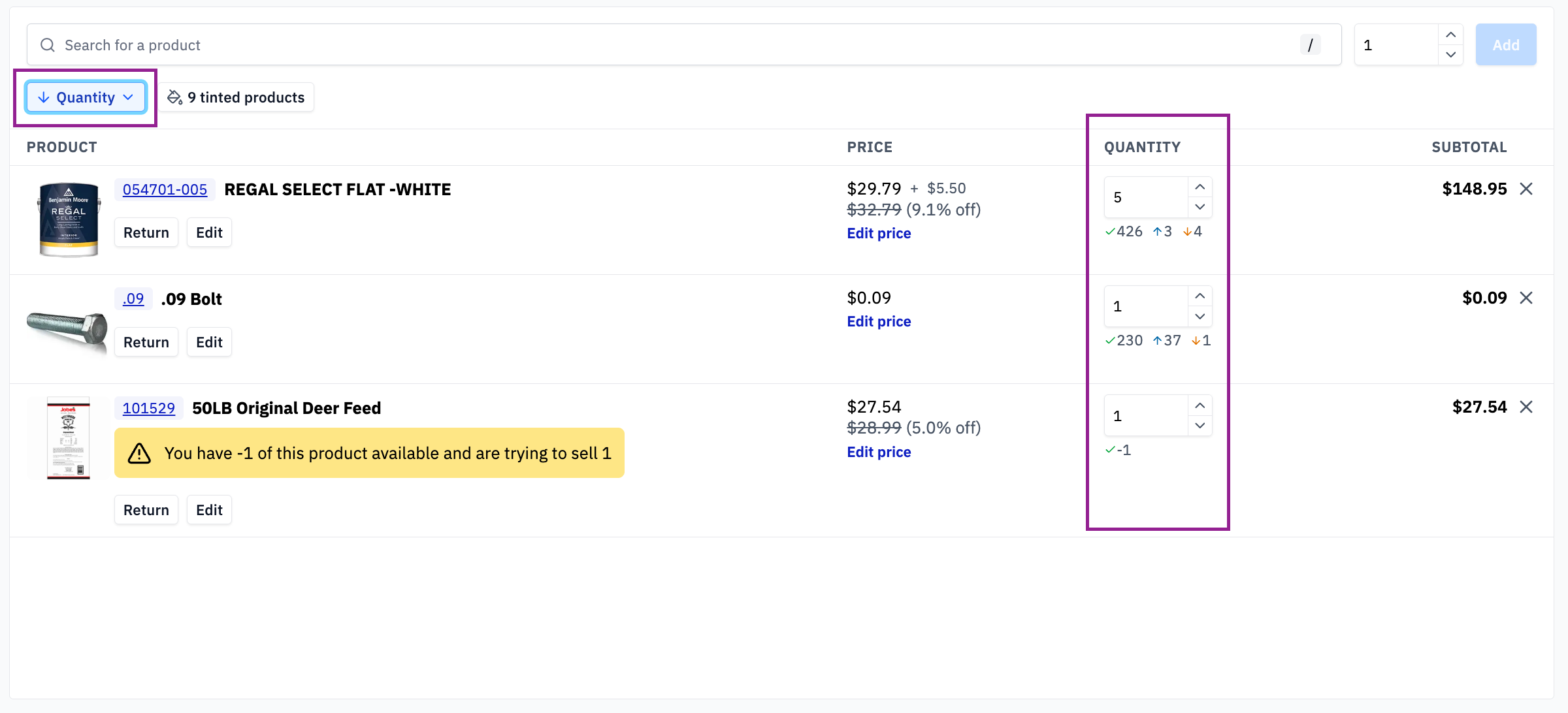
Sort your cart columns. You can now sort the sales, order, and transfer carts by name, quantity, price, or subtotal using the new sort button. Handy when you are reviewing a long order for a contractor restock or double-checking a big paint job quote before submitting it.
Have an idea for what we should build next? Drop it on the Rundoo Idea Board or reach out to us at support@rundoo.ai. We are listening. 🎧