

🏷️ Rundoo Primer: Edit Custom Prices Right in the Table
Faster custom price and promotion edits, plus unit pricing in the cart, tags on the fly, and one home for all your reports.

Summary
Custom prices and promotions just got a lot faster to manage. You can now edit prices, margins, and discounts right in the table, no more clicking into each rule one at a time. We also cleaned up the table columns so the info you scan for is front and center. Plus: unit of measure pricing when you edit a sale price in the cart, tag attaching while creating customers and products, and all your reports in one tab.
✏️ Edit Custom Prices and Promotions Right in the Table
What is new with Rundoo?
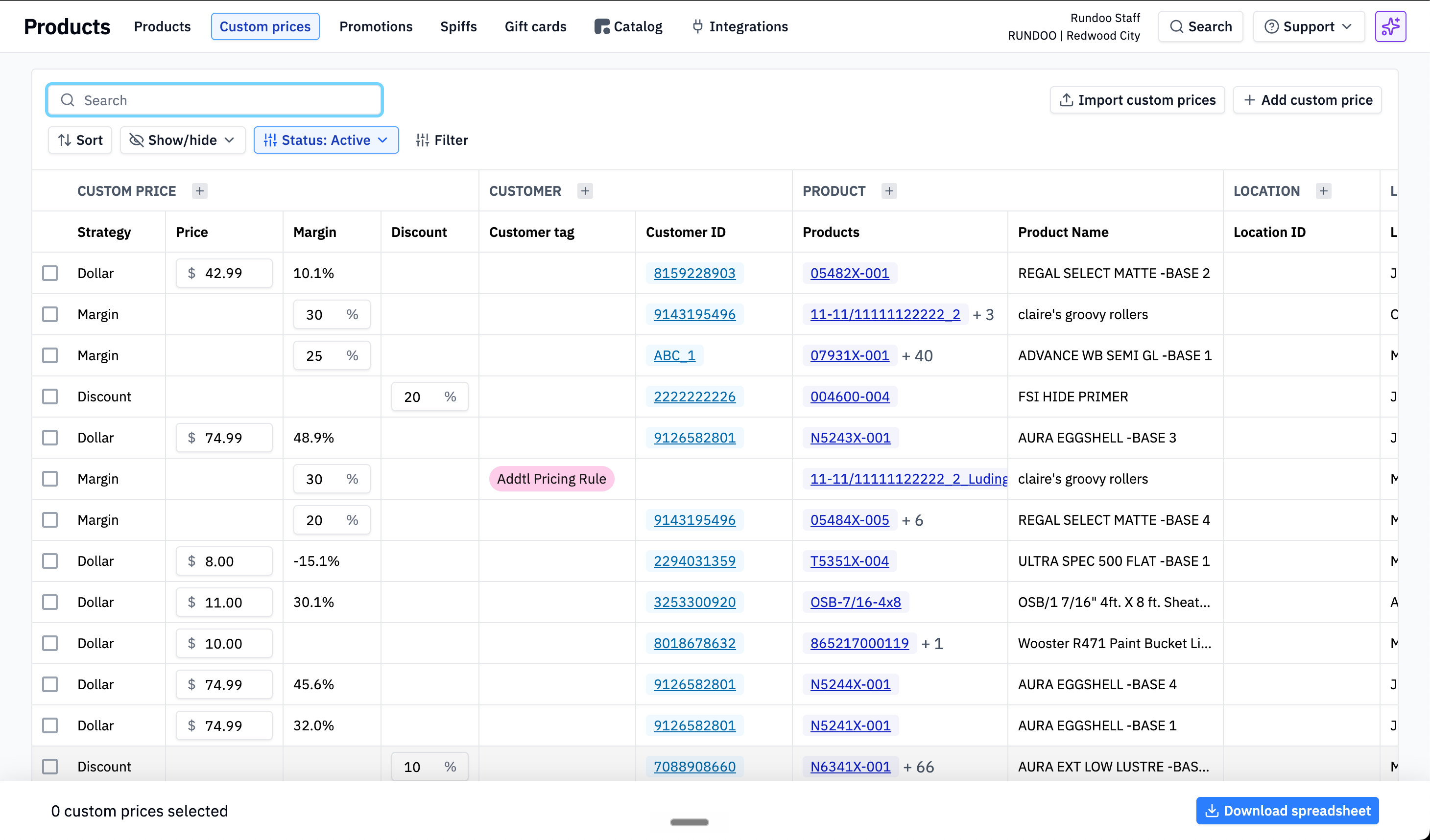
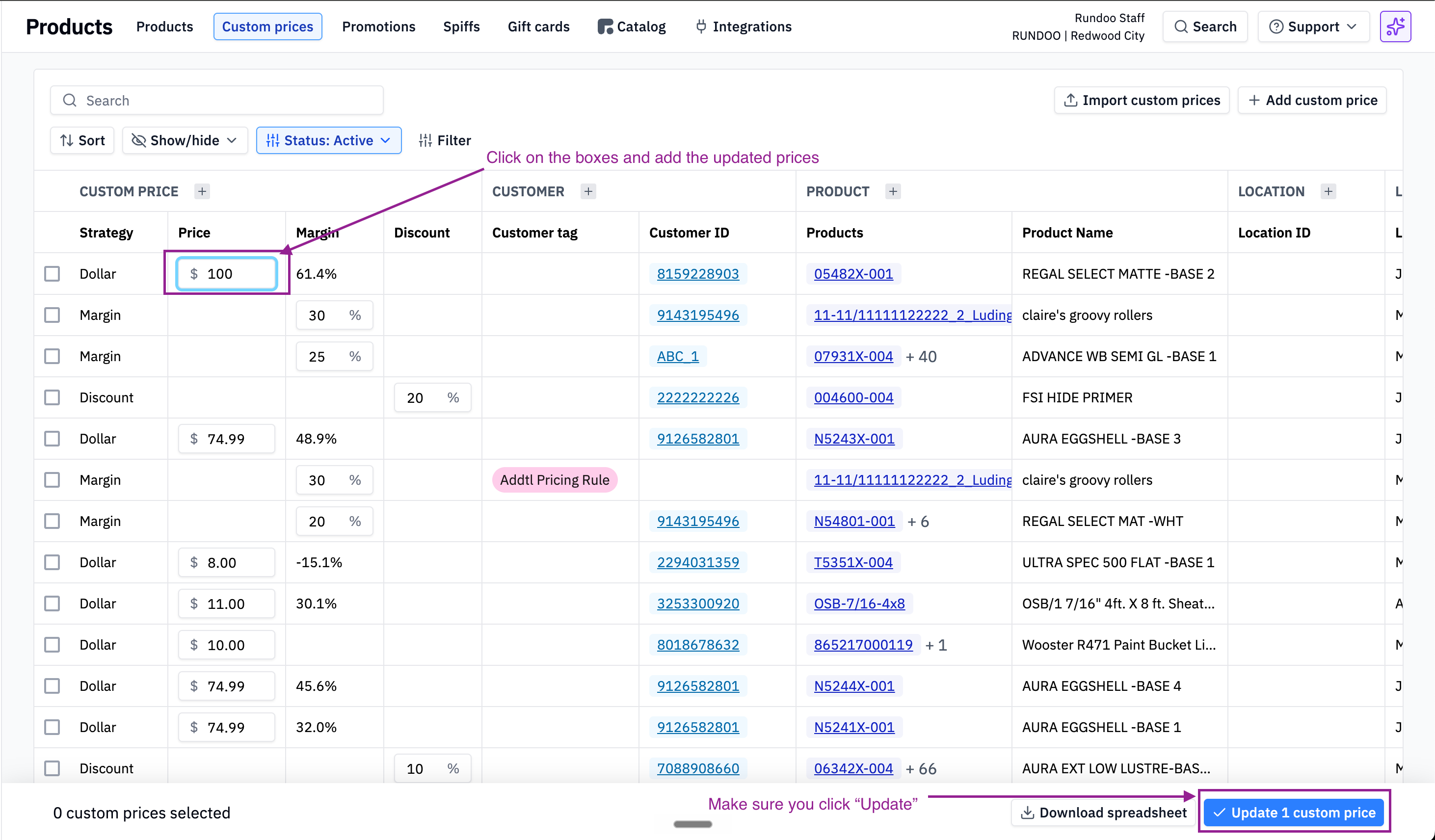
You can now edit custom price and promotion amounts directly in the Custom Prices table. Change a dollar price, a margin %, or a discount % right where you see it. Make as many changes as you want, then apply them all at once with a single button.
This works on the main Custom Prices and Promotions pages, on the pricing tab for a single product, and on per-customer and per-job pages.
We also reordered the table columns so the pricing info you actually look for comes first. Custom prices now lead with Strategy, Price, Margin, and Discount. Promotions lead with Name, Strategy, Price, Margin, and Discount, with start and expiration dates tucked behind the expander.
What does this mean?
Before, updating a custom price meant clicking into the rule, opening the edit form, changing the amount, and saving. Then doing it again for the next rule. And the next one.
Now you just click the amount in the table, type the new number, and move on. When you are done, hit the update button, which counts your changes as you go. Edit five prices and it reads “Update 5 prices.” Confirm once and all your changes go through together.
Nothing changes until you hit that button. You can edit prices across the whole table, double check your work, and only then apply everything in one batch. If you change your mind, just don’t confirm.
And if you prefer updating prices in bulk through spreadsheets, that still works the same as before.
One thing to note: adding a brand new custom price, or changing which products a rule covers, still works the same way. You click into the rule for that. This update is all about making amount changes fast.
Why is this important?
Price updates rarely happen one at a time. When your Benjamin Moore rep tells you costs are going up, you might have a dozen contractor prices to adjust. When lumber prices swing, your builder discounts on framing and plywood need to move with them. When feed prices shift, your bulk discounts need to shift too.
Every click you save on one rule gets multiplied across all of them. What used to take a chunk of your afternoon now takes a few minutes, and you can see all your prices side by side while you work. That makes it easier to keep your pricing consistent and catch anything that looks off.
What does this look like?
Shoutout to Andrew for building this one!
🤝 Know a store still fighting its POS? Refer them and we’ll make it worth your while.
If you are reading the Primer, chances are you know at least one independent store still doing it the hard way: closing out by hand at the end of the night, guessing at what’s on the shelf, quietly dreading the busy season.
If Rundoo would genuinely be a good fit for their store, pointing them our way is one of the better favors you can do a fellow owner, and we’ll thank you for it too.
When a store you refer signs with Rundoo and goes live, you get $500. Refer as many stores as you like, and we handle everything from the demo to go-live.
Also New 🔧
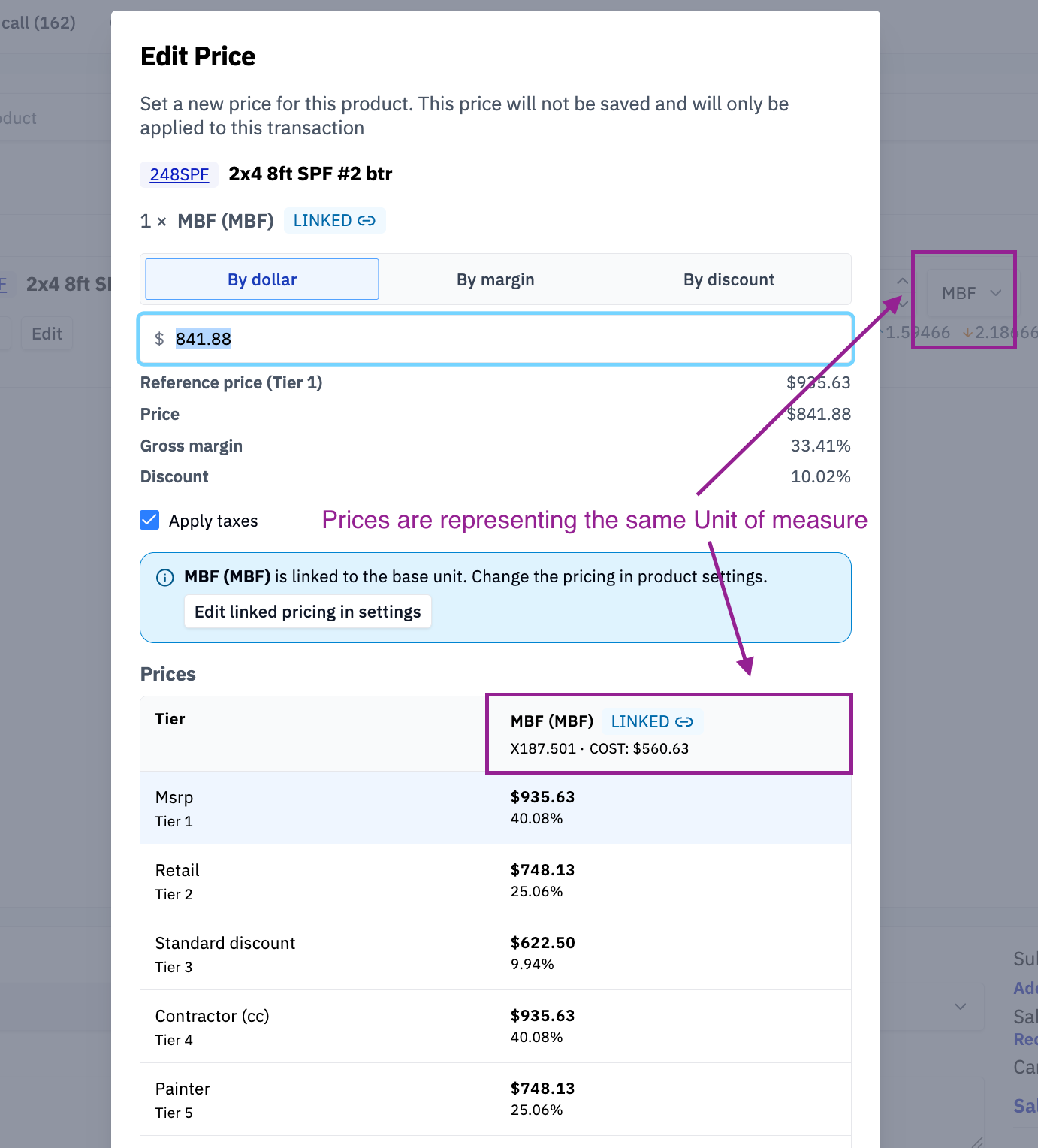
Unit pricing when editing sale prices in the cart. When you edit a sale price in the cart, the pricing now shows based on the unit of measure you have selected. Selling rope by the foot or feed by the pound? Pick the unit in the cart and you will see the pricing for that unit while you make the change. Shoutout to Yen Ning!
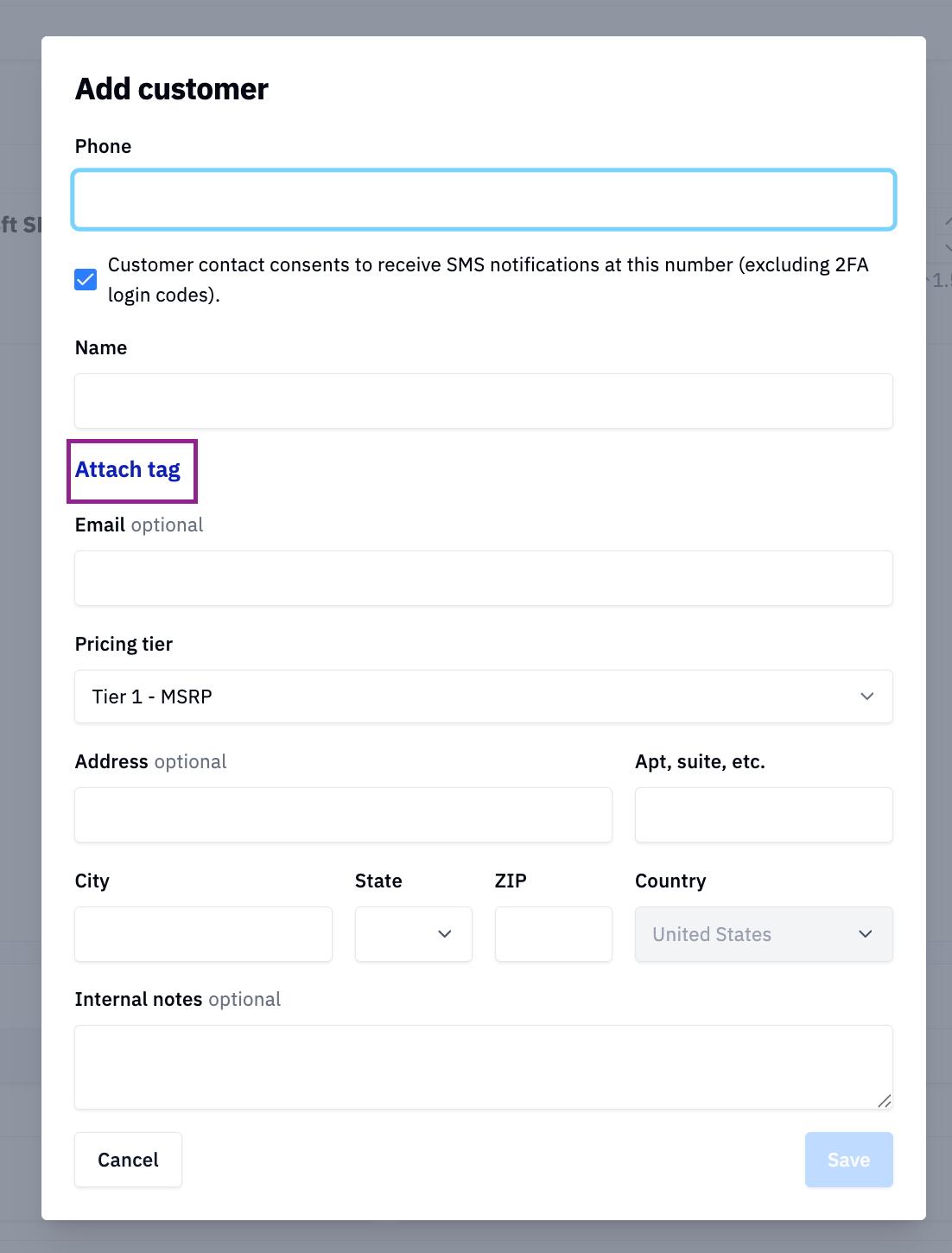
Attach tags while creating customers and products. No more creating a customer or product first, then going back to tag it. Just click “Attach Tag” during creation and it is done in one step.
All reports in one tab. Custom reports and default reports now live together in the Reports tab in the POS. A new filter lets you pick which reports you want to see, so everything is in one place without the clutter.
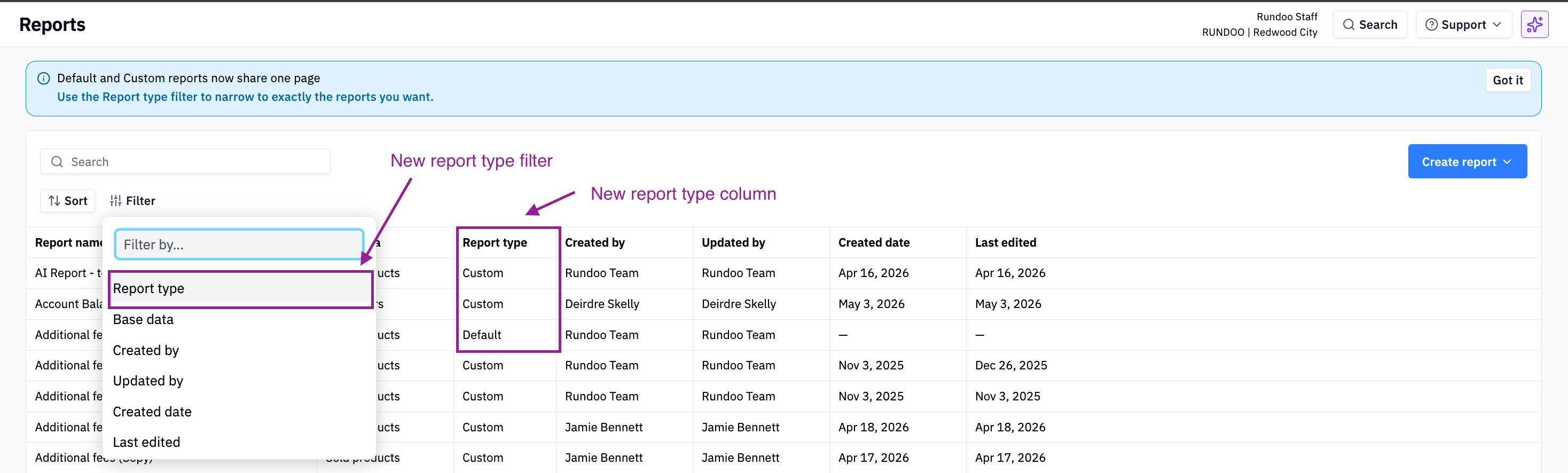
Shoutout to Kyle for tags and unified reports!
💬 We Want to Hear From You
Have an idea for Rundoo? Add it to our idea board at rundoo.nolt.io.
Need help? Reach us anytime at support@rundoo.ai.
Want to learn more? Check out our guides at rundocs.com.